DigitalVolcano
Duplicate Cleaner V1.2
For Updates and more great software check www.digitalvolcano.co.uk
Requirements
Installation
Usage
Search
Location
Size Range
Scanning
Results
Image Preview
Selecting
Duplicate Files for Further Action
Deleting,
Moving, or Hard Linking Files
Importing/Exporting
scan results
Requirements
Microsoft Windows 98,ME,2000,XP. Windows 95 and Windows
Vista installations are currently untested/unsupported.
For Windows 95, 98 and ME you
will need the Unicode driver from Microsoft.
Download it here- Microsoft Unicode Driver
Installation
Double click on the DuplicateCleaner.exe file in
Windows Explorer. You
will be guided
through a simple automatic install process to the location of your
choice.
You
should
only use duplicate
cleaner if you understand your computer's file system, and you know
what you are doing!
Always remember that data should be backed up
regularly. We take no liability for any data lost or damaged through
use or
misuse of this software. We
recommend
that important data is backed up prior to the use of this software, and
deletion
to the recycle bin is always selected. Also, you should always check
that your
recycle bin is enabled in Windows' own settings (right click-properties
on
bin).
Search
Location - where
to look.
This default
mode will scan any file according to the
filter criteria you specify. You can choose from one of the preset
filters
(graphics file, MS Office files, Movies, etc) by clicking on the
'Select' button, or you can type in your own.
Multiple filters are separated by a semicolon (;).
You may specify to search for duplicates by any combination of:
Same content
(CRC) is the default option. When this
option is ticked files will be classed as duplicates if they have
identical content.
This means they could have a different date, file name, etc.
Music
Search
This special
mode will seas music files and read the
extra information contained within the file - Song title, Artist,
Length, Bit
Rate, etc. The currently supported formats are MP3, WMA,OGG,APE and
FLAC. This
information can then be used as an
additional tool when deciding which files to delete.
You may specify
to search for duplicates by any
combination of:.
Some examples:
I want to find
duplicates that are exactly the same
I want to find
if I have multiple copies of MP3 files
In both modes
you can specify and minimum and maximum
file size in KB (Kilobytes). If
either is
set to 0 then that value is ignored.
Now you are ready to start the scan. Click on the
'Start' button to the bottom left to begin. This may take a while
depending on
the number of files in your folders and the size of the files. It may
take
longer to scan a networked drive than a local one.
A Percentage progress is displayed to the
bottom left of the window. Once
the scan
is complete a summary is displayed and any duplicate sets are show in
the main
window. You can
cancel the scan by
clicking on the 'Cancel' button which appears in place of the 'Start'
button
once the scan is underway. Note
that
this may take a short time to respond depending on the status of the
scanning
process.
Results are displayed in the various tabs:
The duplicate sets are listed here. They are divided
into colour coded 'groups'. Each
item in
a group is classed as 'the same' according your search criteria.
You can right-click on a file to get a context menu
with additional actions for the selected file.
This is a list of all files included in the scan, with
attribute information. Double click on a file to open/view it.
This is a list of files which have a size of 0, ie. No
content. Technically, they are all duplicates.
They will be listed in the main duplicate files list if
specified in the
options.
Image Preview
You may view a preview image of a graphics file using the
Image Preview window. Click on the View-->Image Preview Window
menu to obtain the window. Click on an image file (JPG,BMP,ICO,GIF,WMF)
in the results list to view it. You can zoom the image using the slider
bar, or pan around by clicking and dragging the mouse on the image.
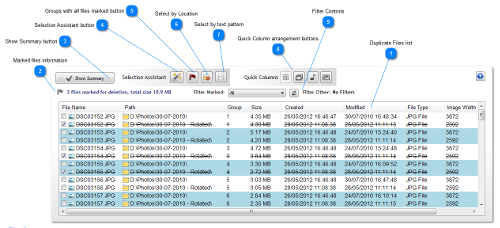
You can now select files to delete, move or hard link. If in
doubt,
leave alone. To mark a file, in the 'Duplicate Files' tab either
click on the checkbox or use the right-click context menu. You can also
double
click on a file to open it in it's native application for further
investigation.
The selection
assistant can also help with
the marking
of files. It can-
Additionally,
when in Music Search mode you
can select
for deletion by audio tags. Options are-
You can also
select by a pattern in the
file or folder
name. For instance if you want to mark everything contained in a 'temp'
folder
you can use the expression */temp/* in the Path section. Or to select
all .bak
files you could enter *.bak in the Filename section.
When you are happy with your selection, click on the 'Delete/Move Files' button to action your selection.
Deleting, Moving or Hard Linking Files
After clicking on the 'Delete/Move Files' button a window will pop up summarizing your selections. You now have three options -
Delete
Files
This
button will delete the selected files. If 'Delete to Recycle
Bin' is not checked they will be deleted permanently.
Move
Files
You
can move your selected files to another folder for safe-keeping, or
until such time as you see fit to delete them. With the 'Retain Folder
Structure' option selected the files will be placed in folders named
according to their original structure.
Create
Hard Links
(What
is a Hard Link? From
Microsoft.com) A
hard link is a
directory entry for a file. Every file can be
considered to have at least one hard link. On NTFS volumes, each file
can have multiple hard links, and thus a single file can appear in many
directories (or even in the same directory with different names).
Because all of the links reference the same file, programs can open any
of the links and modify the file. A file is deleted from the file
system only after all links to it have been deleted. After you create a
hard link, programs can use it like any other file name.
You can only create hard links on NTFS volumes using Windows XP, 2000, or Vista. You cannot create hard links between volumes (different hard drives or network shares). Duplicate Cleaner will only let you hard link CRC-matched (same content) files.
When creating Hard Links there needs to be at least one file in each duplicate group left unticked. This will be the 'original' file to which the other ticked files in the group are linked. Once linked there will appear to be no difference between the linked file and the original in Windows Explorer. In addition, hard linked files will appear again as duplicates if you re-scan. (Something to be addressed in future versions of Duplicate Cleaner).
Exporting / Importing Scan Results
- Multiple
folder scans
- Multiple
speed optimizations - can run up to 10
times faster.
- Specify file
size range
- Faster
support for more music formats & improved
music search.
- Tabbed
interface
Additional Credits
This program uses AudioGenie (http://www.audiogenie.de/)